

Data Access Rules
API Now! uses an Authorization Engine to evaluate whether an incoming request is allowed to read or write data. Access is governed by Access Rules organized into Access Scenarios that you attach to your API endpoints in the API Modeler.
Access Scenario Hierarchy & Inheritance
Section titled “Access Scenario Hierarchy & Inheritance”To prevent redundant configuration, access rules are organized into Access Scenarios that support hierarchical inheritance. An endpoint (action) resolves scenarios from its parent contexts in priority order:
graph TD
    API[1. API Level - Broadest Default Scenarios] -->|Inherited by| Entity[2. Exposed Entity Level Scenarios]
    Entity -->|Inherited by| Action[3. Action Level - Most Specific Scenarios]
Scenario Resolution & Overrides
Section titled “Scenario Resolution & Overrides”When an endpoint receives a request, the authorization engine merges scenarios from all three levels in order of specificity:
- Sequential Fallthrough (“OR ELSE”): Scenarios are evaluated in priority order. The first matching scenario that grants access is executed.
- Override Parent Scenarios: If an action needs strict security that ignores inherited entity or API-level policies, enable “Override parent scenarios” in the action settings. The engine will evaluate only the scenarios explicitly declared on that action.
Predicate Trees: Combining Rules with AND / OR Logic
Section titled “Predicate Trees: Combining Rules with AND / OR Logic”Within each Access Scenario, rules are structured as a Recursive Predicate Tree (PredicateGroup) rather than a flat checklist. This allows developers to model arbitrary boolean logic:
ANDGroups (style: 'and'): All child rules and nested sub-groups must evaluate totrue. Used to combine prerequisites (e.g.Allow AuthenticatedANDMatch User Role: admin).ORGroups (style: 'or'): At least one child branch must evaluate totrue. Used for alternative access pathways within the same persona (e.g.Match Organization RoleORMatch Project Stakeholder).
Automatic SQL Query Generation (FETCH Phase)
Section titled “Automatic SQL Query Generation (FETCH Phase)”For collection endpoints (List, Search, Restore), the engine translates the scenario’s surviving boolean predicate tree directly into an SQL WHERE clause containing matching AND and OR subqueries. Because filtering is enforced at the database level, SQL pagination totals (meta.total, page, per_page) remain 100% exact.
For a comprehensive guide on predicate trees and the 3-Phase Execution Architecture (PRE_FETCH, FETCH, POST_FETCH), see the Authorization Getting Started Guide.
Standard Access Rule Types
Section titled “Standard Access Rule Types”You can configure several built-in access rules within your scenario predicate trees:
Allow Public Access (allowPublic)
Section titled “Allow Public Access (allowPublic)”Allows any anonymous client to call the endpoint without logging in.
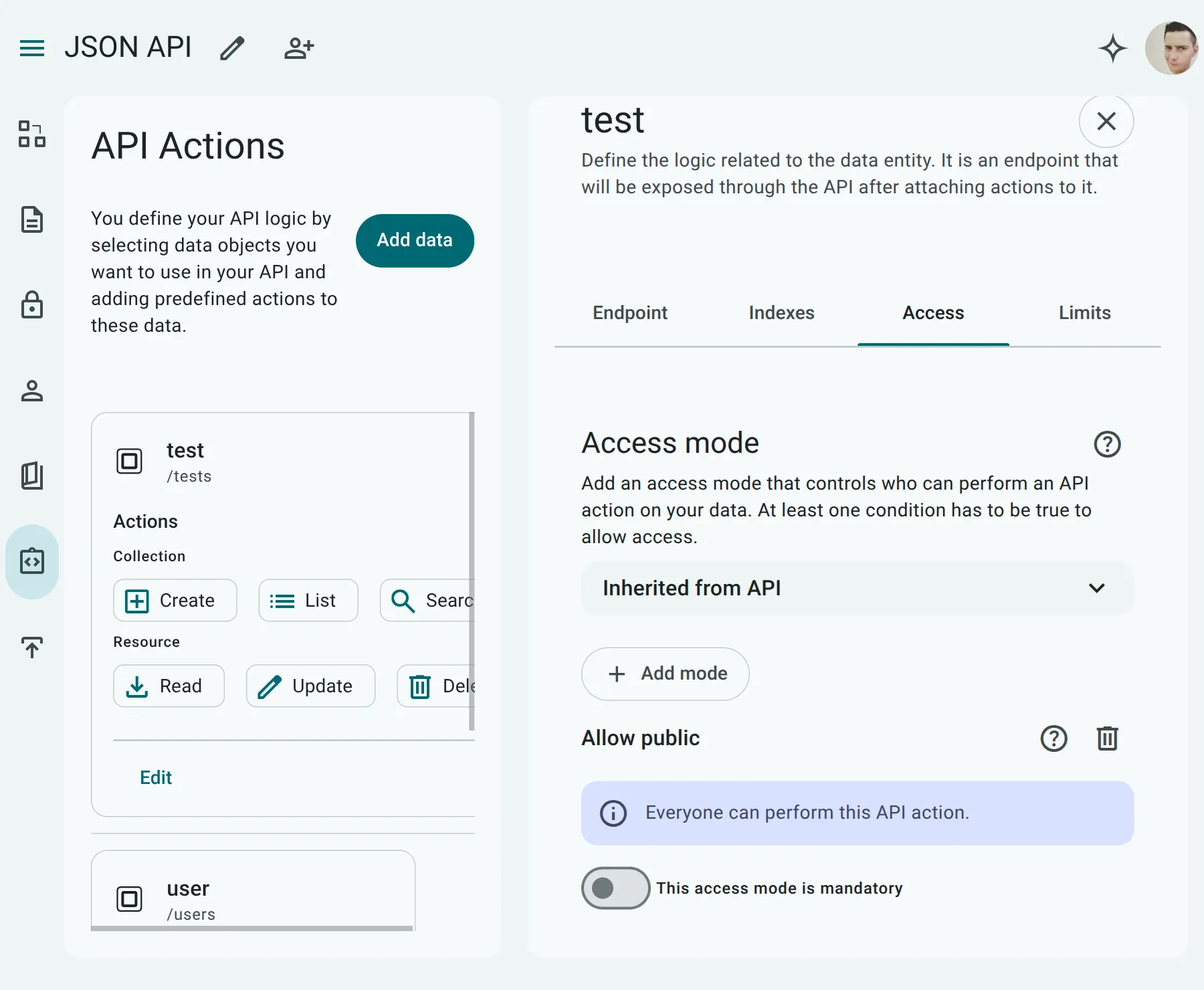
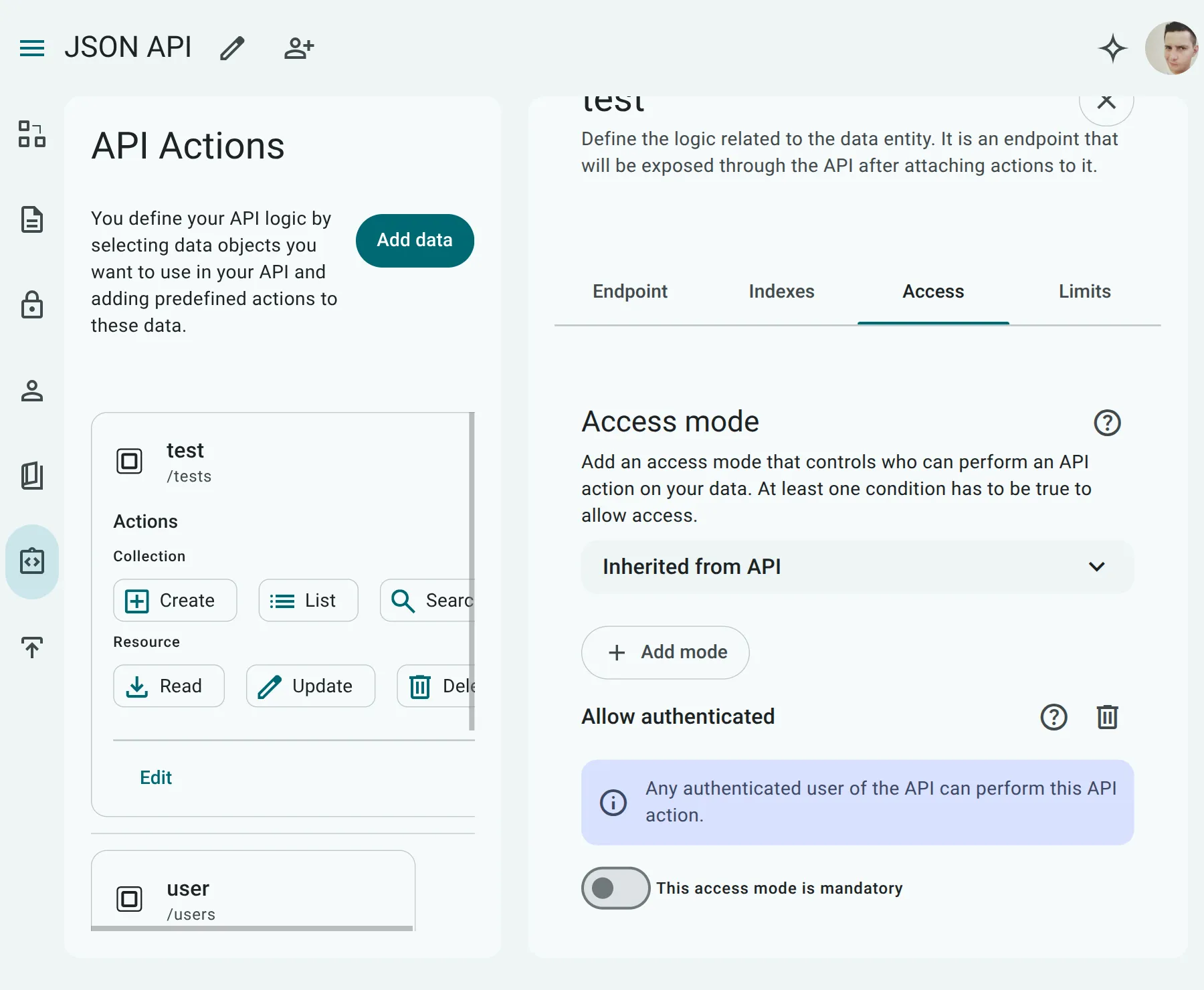
Allow Authenticated Users (allowAuthenticated)
Section titled “Allow Authenticated Users (allowAuthenticated)”Restricts access to clients with a valid login session.
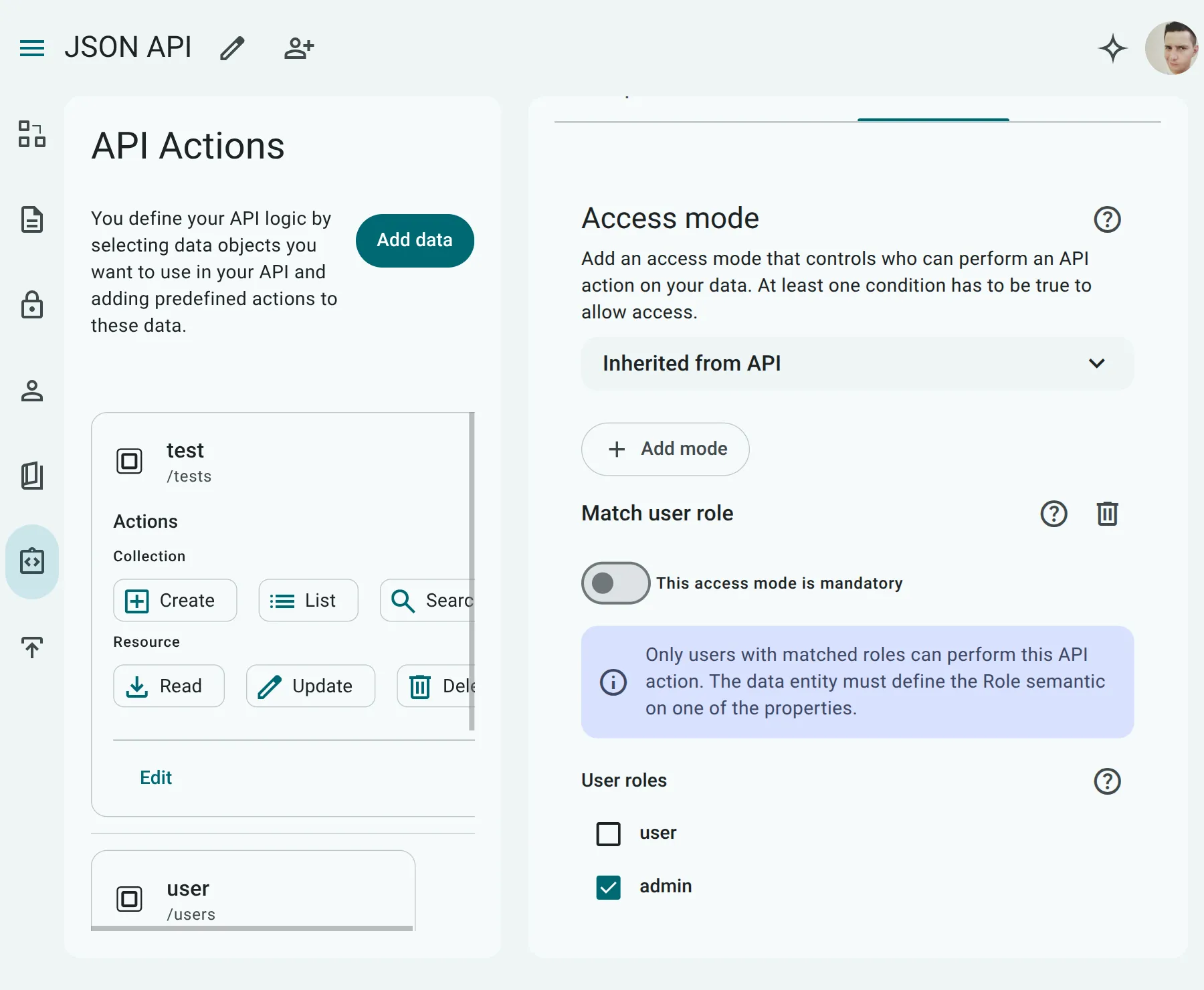
Match User Role (matchUserRole)
Section titled “Match User Role (matchUserRole)”Restricts access to users holding specific permission roles (e.g., ['admin'] or ['manager']).
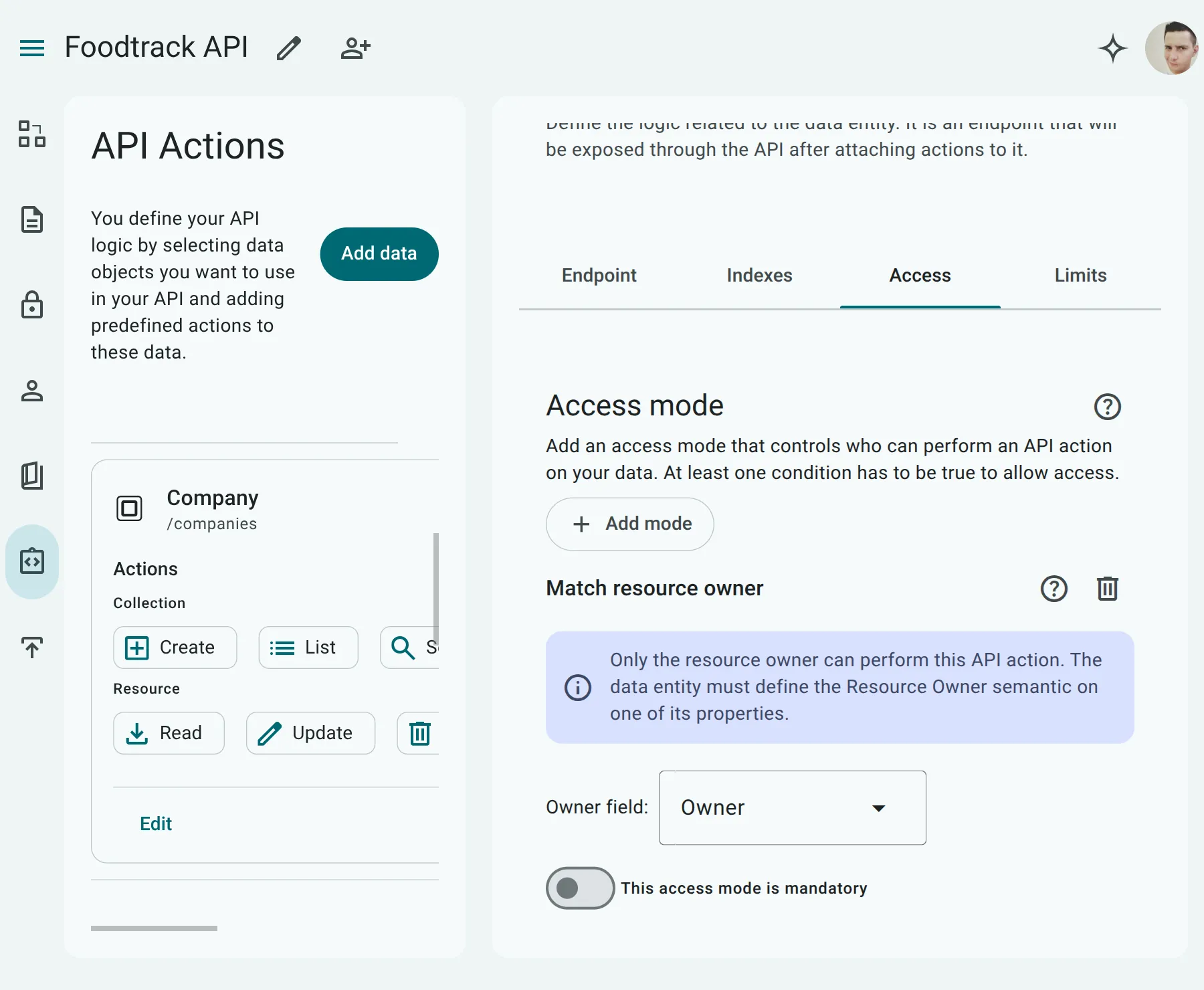
Match Resource Owner (matchResourceOwner)
Section titled “Match Resource Owner (matchResourceOwner)”Restricts access to the specific user who owns the record via a direct relationship tagged with ResourceOwnerIdentifier. For list actions, it automatically injects WHERE owner_id = :userId.
Match Relational Resource Owner (relationalResourceOwner)
Section titled “Match Relational Resource Owner (relationalResourceOwner)”Enforces URL-anchored inherited ownership when child records belong to a parent container owned by the user (e.g. /documents/:documentId/attachments/:attachmentId).
Match Project Role (matchProjectRole)
Section titled “Match Project Role (matchProjectRole)”Checks user membership and roles within a specific Project container defined by ProjectMembers.
Match Project Stakeholder (matchProjectStakeholder)
Section titled “Match Project Stakeholder (matchProjectStakeholder)”A compound rule granting access if the caller is the direct owner OR an explicit member of the project. Generates (owner_id = :userId OR EXISTS (SELECT 1 FROM project_members ...)).
Match Organization Role (matchOrganizationRole)
Section titled “Match Organization Role (matchOrganizationRole)”Restricts access to active members of an organization container, optionally validating member roles (e.g. ['owner', 'admin']).
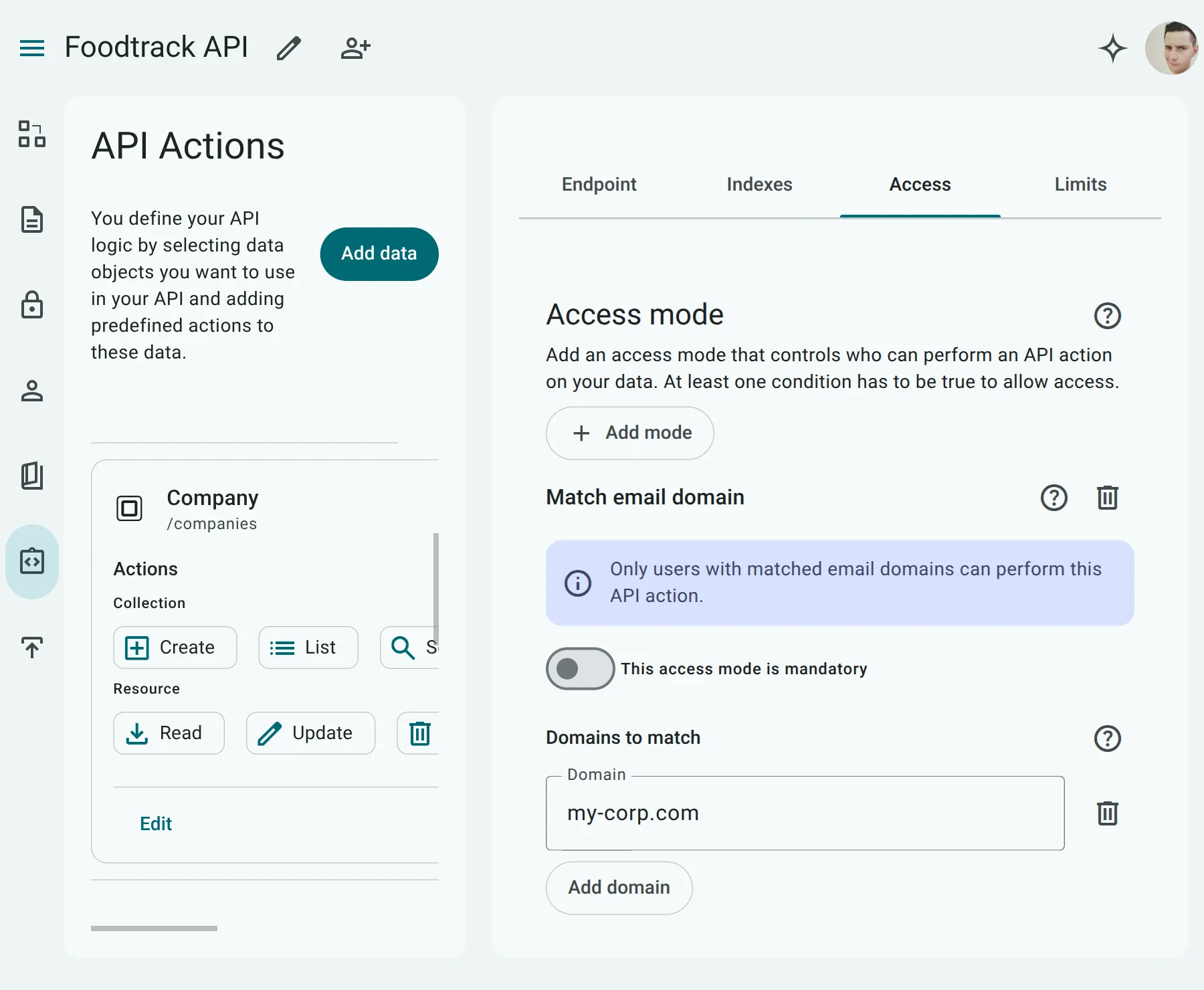
Match Email Domain (matchEmailDomain)
Section titled “Match Email Domain (matchEmailDomain)”Restricts access to users whose authenticated email address belongs to specific domains (e.g., ["company.com"]).
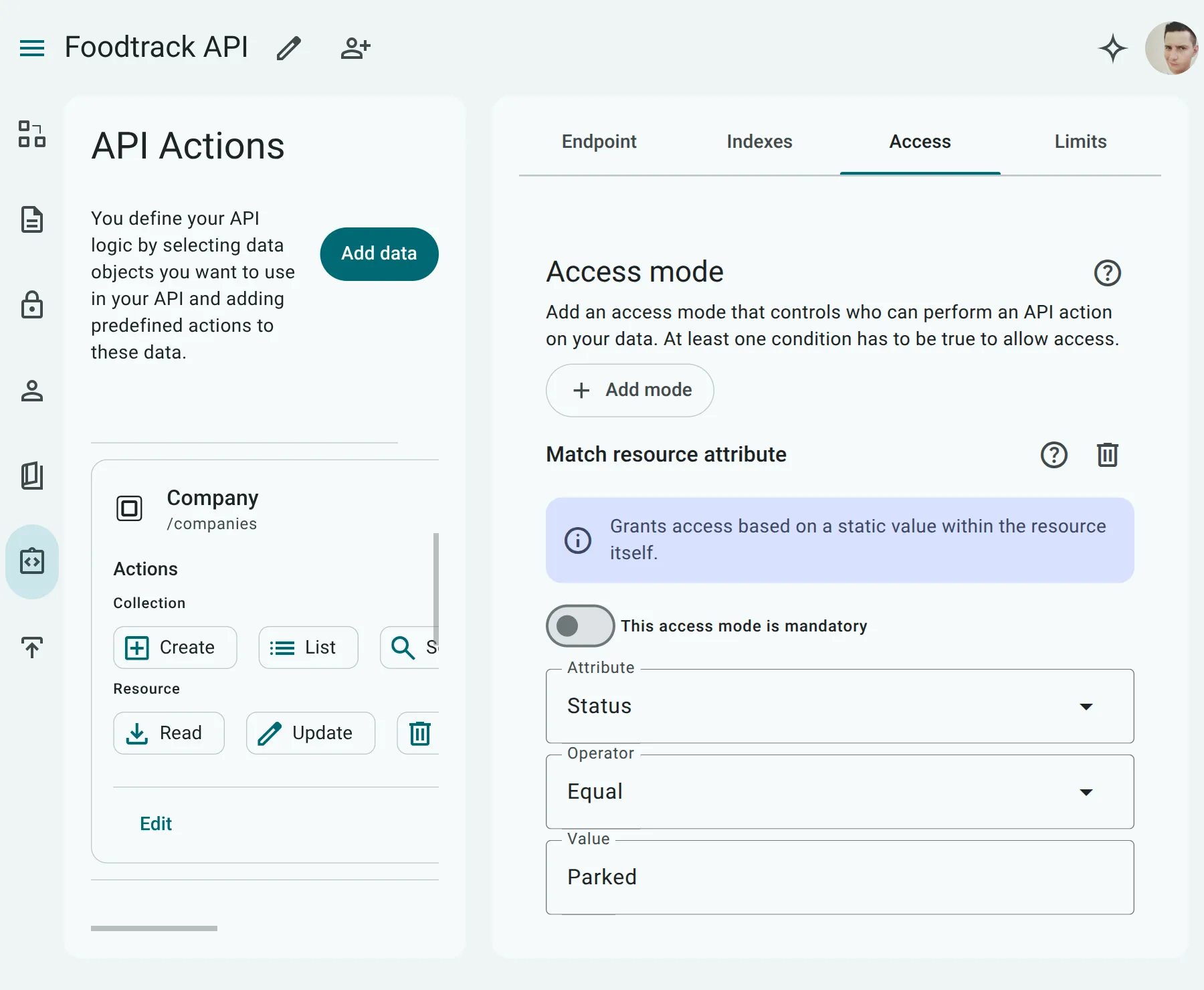
Match Resource Attribute (matchResourceAttribute)
Section titled “Match Resource Attribute (matchResourceAttribute)”Restricts access based on a property value on the resource itself (e.g. status equal 'published'). Supports standard comparison operators: equal, notEqual, in, notIn, greaterThan, etc.
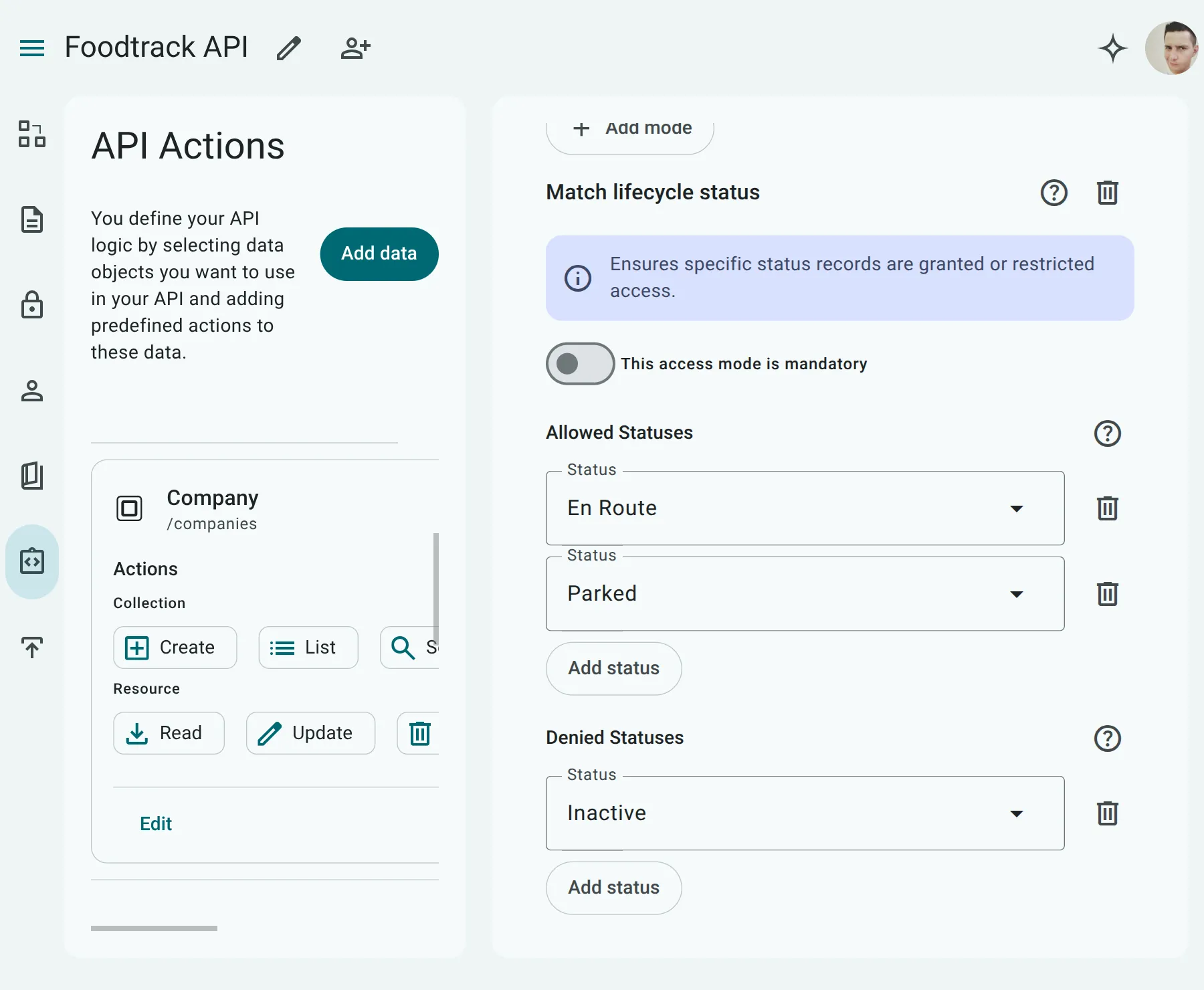
Lifecycle Status (lifecycleStatus)
Section titled “Lifecycle Status (lifecycleStatus)”A specialized rule for entities utilizing Status Semantics, specifying allowedStatuses or deniedStatuses (e.g. preventing access to "Draft" records).
Match Path Parameter (matchPathParameter)
Section titled “Match Path Parameter (matchPathParameter)”Verifies that a route parameter in the URL path matches an attribute from the caller’s authenticated session.
Practical Security Scenarios
Section titled “Practical Security Scenarios”Explore real-world examples and multi-persona patterns in the Authorization Getting Started Guide.